PTCL Speed Test Online
A PTCL speed test measures how fast data actually moves between your device and a test server. The three numbers that matter most are download speed, upload speed, and ping. Download speed is what drives stuff like watching videos and downloading files, upload speed matters more for video calls, cloud backups, and sending big files, and ping measures the lag between your device and whatever server it's testing against.
Results usually show up in Mbps, megabits per second, which isn't the same as MB/s, megabytes per second, the unit most download managers use. Rough rule of thumb, divide the Mbps number by eight to get MB/s.
How to Actually Run a PTCL Speed Test
You don't need any technical know-how to do this, works fine from a phone, laptop, desktop, or tablet, as long as it's connected to your PTCL network. For a genuinely useful PTCL speed test, here's what to do:
- Connect your device to the PTCL connection you're trying to check
- If you can, plug a computer straight into the router with an Ethernet cable
- Pause any downloads, cloud backups, streaming, or other heavy internet use
- Close tabs and apps you don't need open
- Head to a reliable speed-testing website
- Run the test and let it finish measuring both download and upload
- Jot down the download, upload, and ping numbers
- Run it again at different times if the connection's been acting up regularly
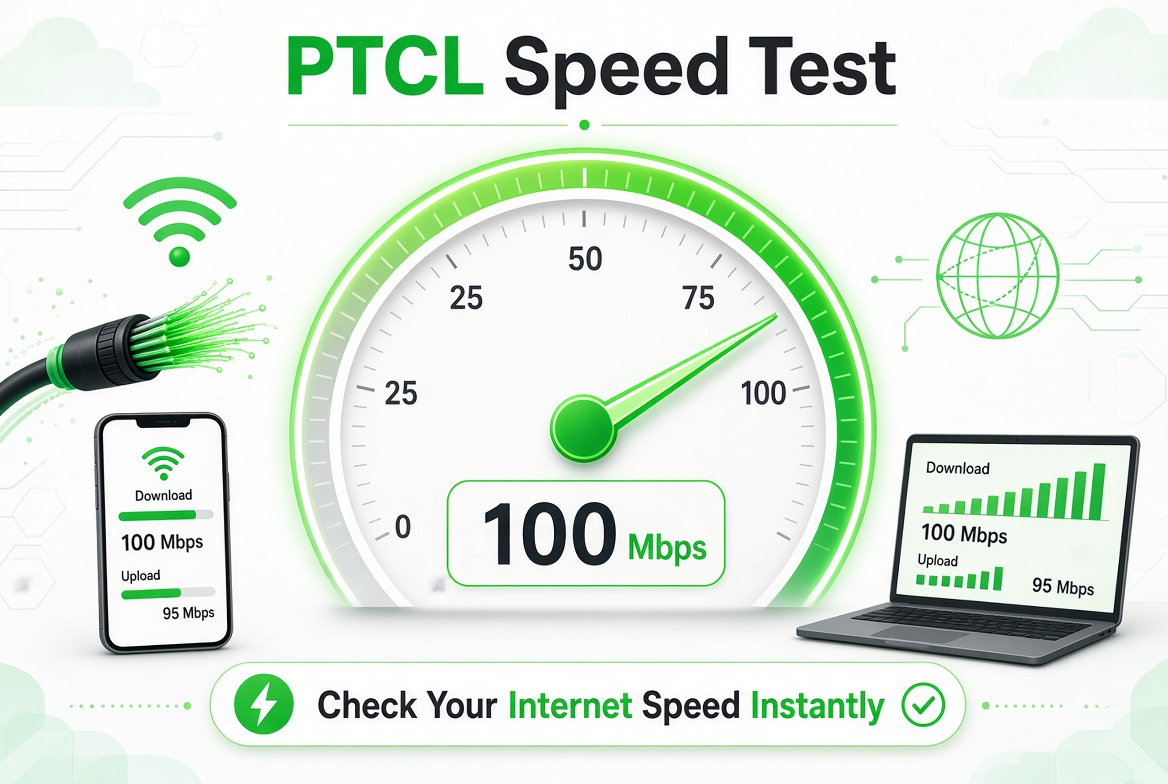
One test alone is really just a snapshot. Running it a few times gives you a much clearer picture of whether something's actually wrong or it's just a one-off dip.
Download Speed and What It Actually Tells You
Download speed's usually the first number people notice, mostly because most home internet use revolves around receiving data. Streaming, downloading games, loading websites, grabbing files, installing updates, all of that leans heavily on download performance.
Worth knowing, your actual download number can shift depending on which site or server you're connecting to. A speed test only measures your connection against its own test server, so a slower reading on one particular site doesn't automatically mean your PTCL connection itself is running at that speed everywhere.
Upload Speed Matters More Than People Think
Upload speed is about how fast your device sends data out to the internet, and it becomes a much bigger deal when you're sending large files, uploading videos, backing up to the cloud, or hopping on video calls.
Someone who's mostly just watching YouTube probably never thinks about upload speed. Someone working from home notices it a lot more. Slow uploads can mess with file sharing, cloud backups, and how clear your video looks during a meeting. A lot of broadband connections are actually built with much higher download speed than upload speed on purpose, so don't expect the two numbers to match.
What Ping Actually Means
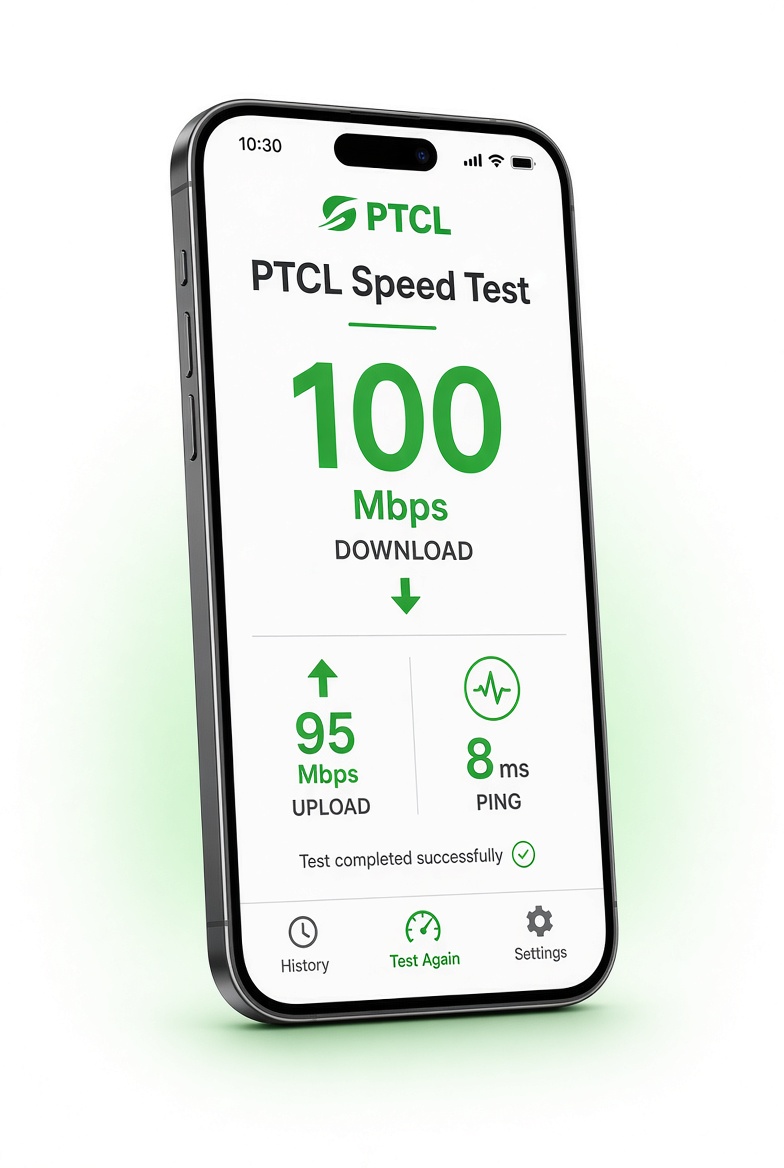
Ping, or latency, measures how long it takes data to travel from your device to the test server and back, shown in milliseconds. Lower ping generally means a snappier connection. This matters way more for gaming, voice calls, and video meetings than it does for just downloading a big file. So it's entirely possible to have solid download speed and still feel lag during anything interactive if your latency's high or bouncing around.
Jitter and Packet Loss Explain the Weird Cases
Some speed-testing tools throw in extra numbers like jitter and packet loss. These come in handy when your download speed looks fine on paper, but calls or games still feel choppy.
Jitter is basically how much your latency swings between one data packet and the next, big swings can make voice or video feel uneven. Packet loss happens when data just doesn't make it to where it's going, causing buffering, interruptions, or dropped connections. That's exactly why staring at the Mbps number alone doesn't always tell you the full story about connection quality.
Wi-Fi Test vs Ethernet Test
Your device's connection to the router can end up being the actual weak link. A phone on Wi-Fi might show a completely different result than a computer plugged straight into the router. For the clearest read on the actual incoming line, use Ethernet wherever you can. If the wired result matches what you're paying for but Wi-Fi comes in way lower, the issue's probably inside your home network, not the PTCL connection itself. Router placement plays into this too, walls, distance, interference from other networks, and how many devices are connected all drag Wi-Fi performance down.
Getting a More Reliable PTCL Speed Test Result
Before running another PTCL speed test, try keeping conditions as consistent as possible so results are actually comparable:
- Test from the same device each time
- Test from the same spot
- Use Ethernet when you're checking the raw incoming connection
- Pause or disconnect other heavy users temporarily
- Don't download anything mid-test
- Run it a handful of times instead of trusting one result
- Test once during normal hours, once during whenever the slowdown usually hits
- Write down the date, time, and results if you're planning to report a recurring issue
If your connection keeps coming back with poor results under the same conditions every time, having that recorded data makes it a lot easier when you're explaining the problem to customer support later.
FAQs
How do I check my PTCL internet speed?
Connect your device to the PTCL connection, open a reliable speed-testing site, and run the test.
Why does my PTCL speed look worse on Wi-Fi?
Distance from the router, walls, interference, how many devices are connected, and the router or device's own capabilities can all drag Wi-Fi performance down.
Why is my upload speed lower than my download speed?
Most residential broadband is built with asymmetric speeds on purpose, download capacity is usually higher than upload.
Should I test my PTCL connection at different times of day?
Yeah, if it tends to slow down at certain times, testing during both normal hours and the slow period shows whether the drop is consistent or a one-off.
Does restarting my router actually speed things up?
It can fix temporary glitches or connection hiccups, but it won't permanently boost your speed beyond what your package actually offers.
Disclaimer: We do not give any SIM card data, personal data etc. All such pages claiming to share SIM Details are fake and work against NCCIA policy in Pakistan. It is illegal as well as dangerous to share or seek this information. Our official platform complies with NCCIA guidelines, and your privacy is protected. And remember to remain vigilant and fact-check where personal data might be involved. Never use unauthorized sources for SIM information checks.